Integration Suite - Accessing On Prem OData through iFlow
Published: December 2025
This document assumes that SAP Integration Suite trial tenant is already available and fully provisioned. If this is not the case, please follow the instructions provided in this link.
OData services developed in SAP S/4HANA on-premise or private cloud environments can be securely exposed using SAP Integration Suite. This document references an OData service developed previously, which is available at the following Link. The step-by-step procedure for exposing this service is outlined below.
Step 1: Develop iFlow on SAP Integration Suite
Create a Package
Login to SAP Integration Suite. Click on "Design" -> "Integrations and APIs" -> "Create".
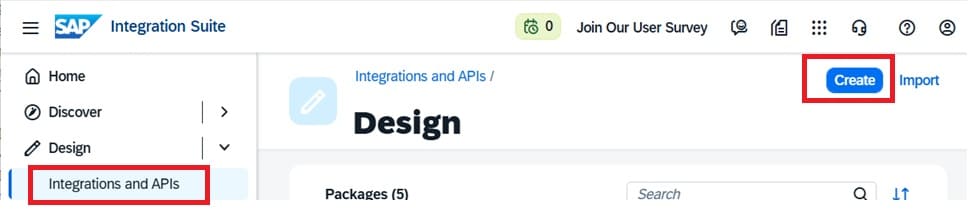
Upon pressing the create button, the following screen shows:
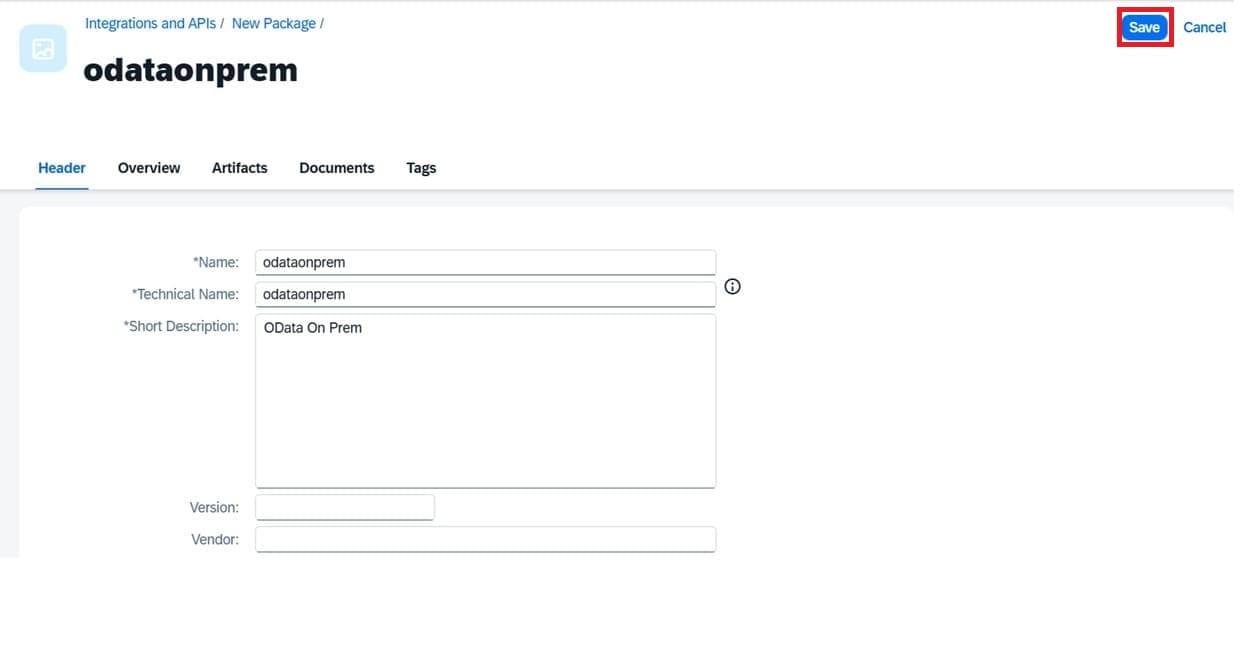
Press Save button and the a new iFlow package created.
Create the iFlow
On the package page, click Edit button.
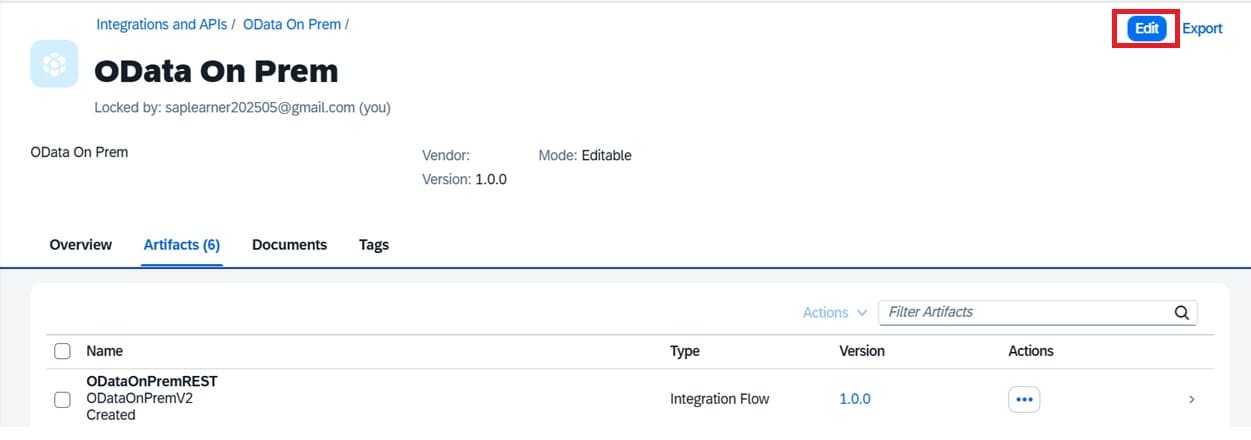
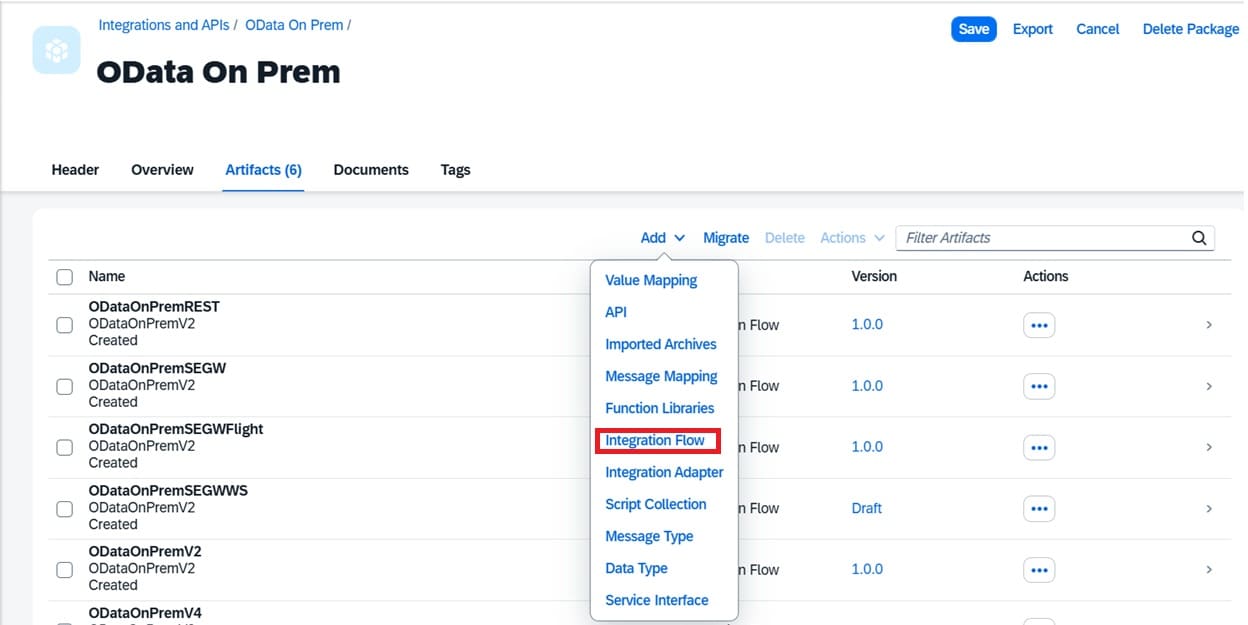
Click on "Add" button and a dropdown menu come out. Select "Integration Flow".
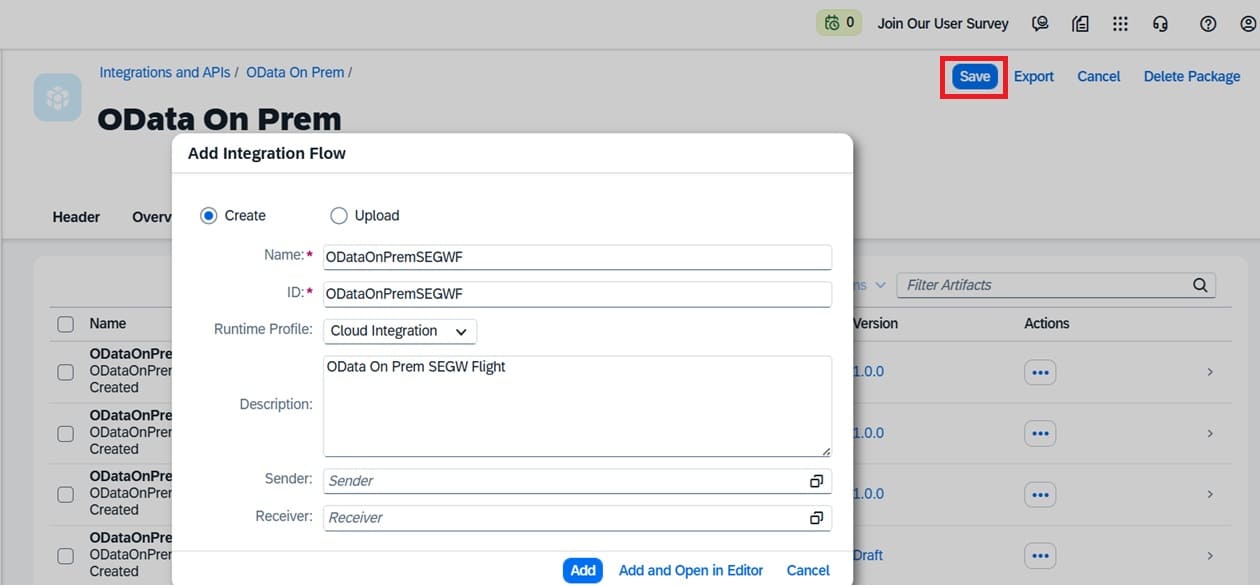
A popup screen is shown up. Fill in details of the iFlow on the popup menu and click "Save" button.
A new artifact created.
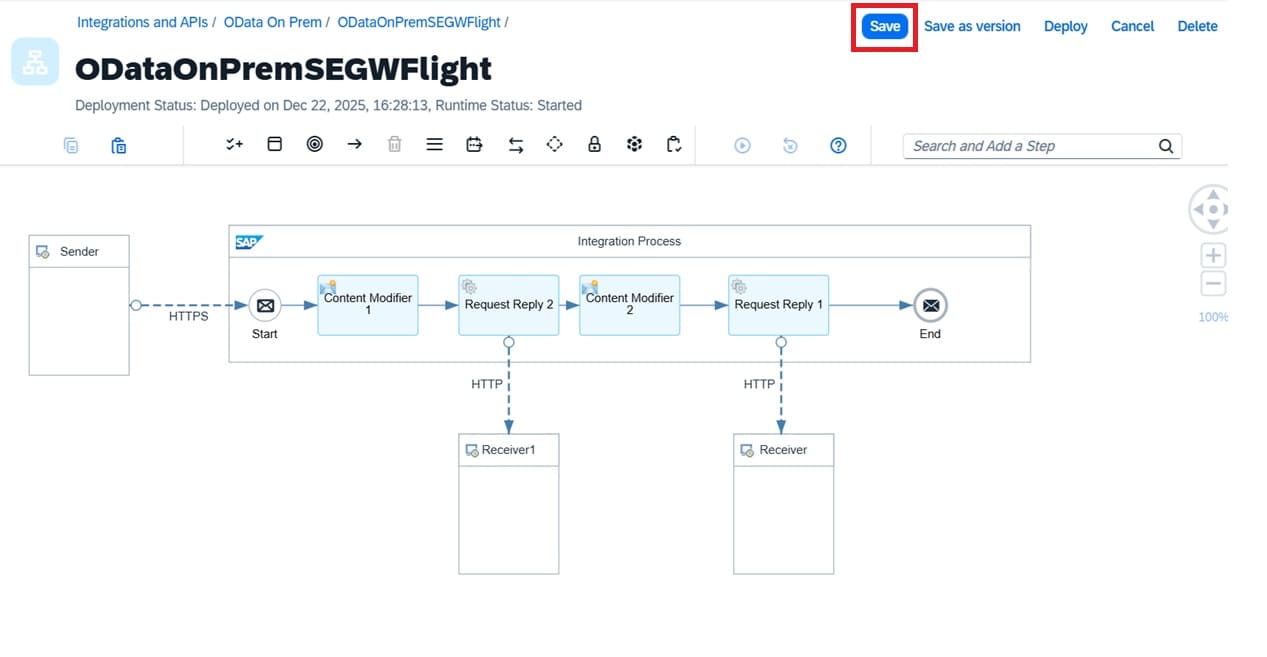
When everything's done, click Save button at top right.
Develop the iFlow
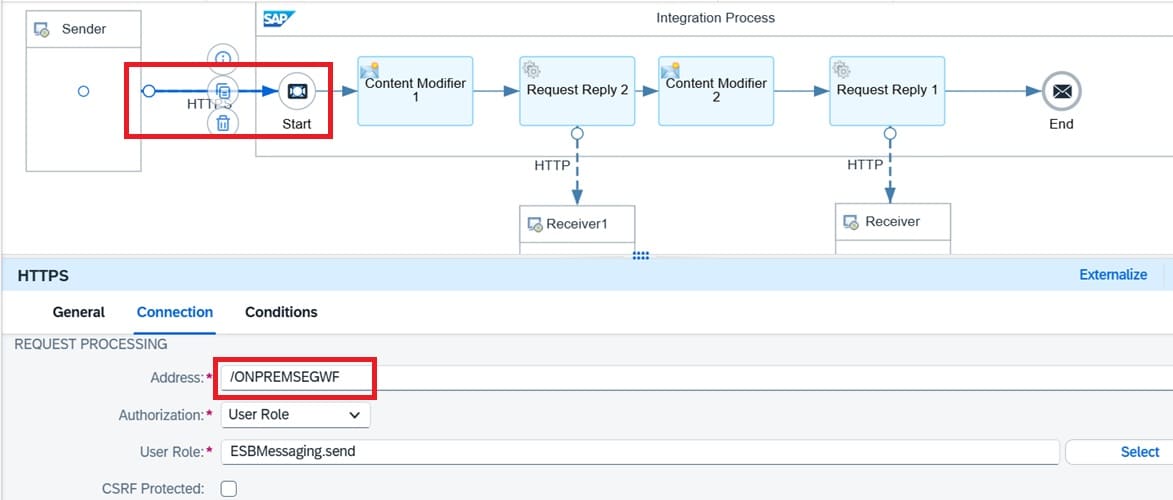
HTTPS Adapter
Content Modifier 1
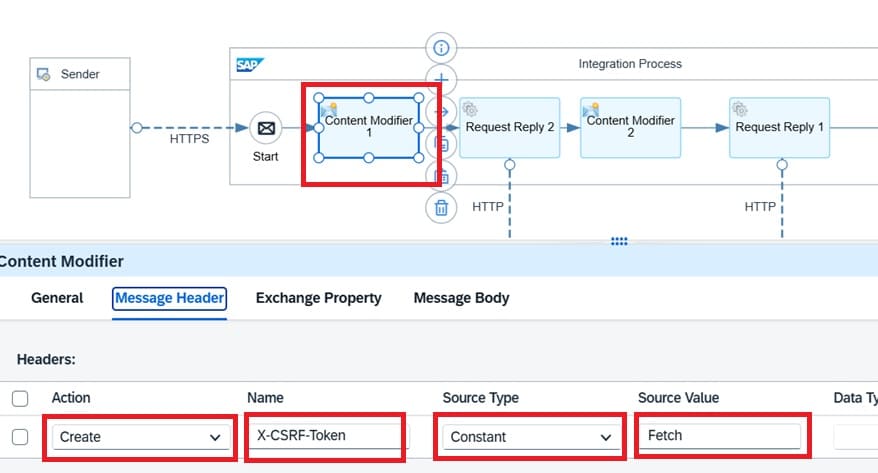
Content Modifier 1 is used to maintain "X-CSRF-Token" key as HTTP header with value "Fetch". This is required for the purpose of getting X-CSRF-Token from backend S/4 HANA on which the OData API will be called.
Request Reply 1
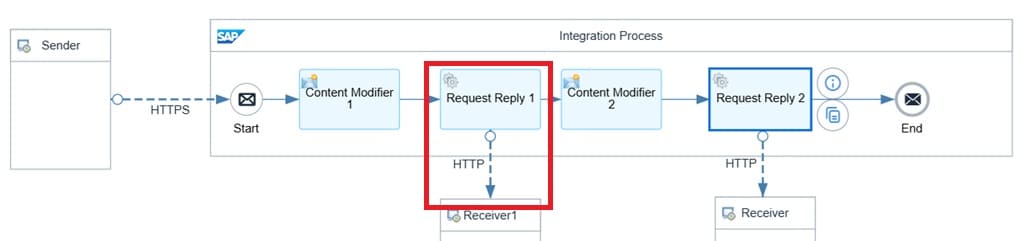
Request Reply 1 is used to call the backend S/4 HANA API for retrieving the X-CSRF-Token.
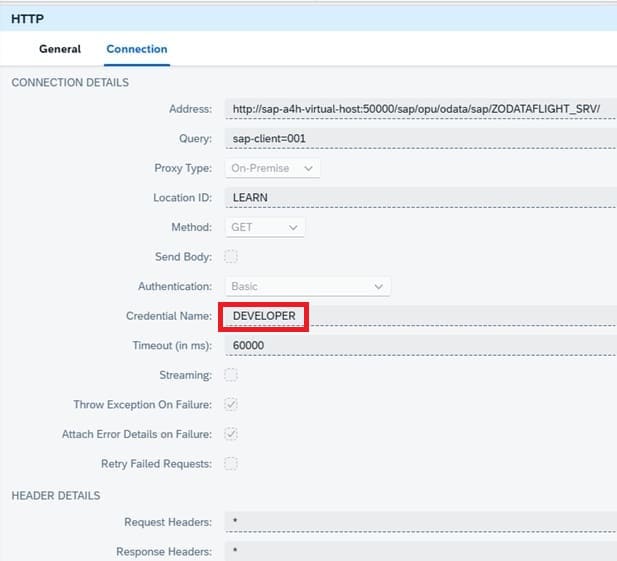
Credential name below is a pair of username and password maintained in Integration Suite. Please refer to the following link for procedure maintaining credential on Integration Suite.
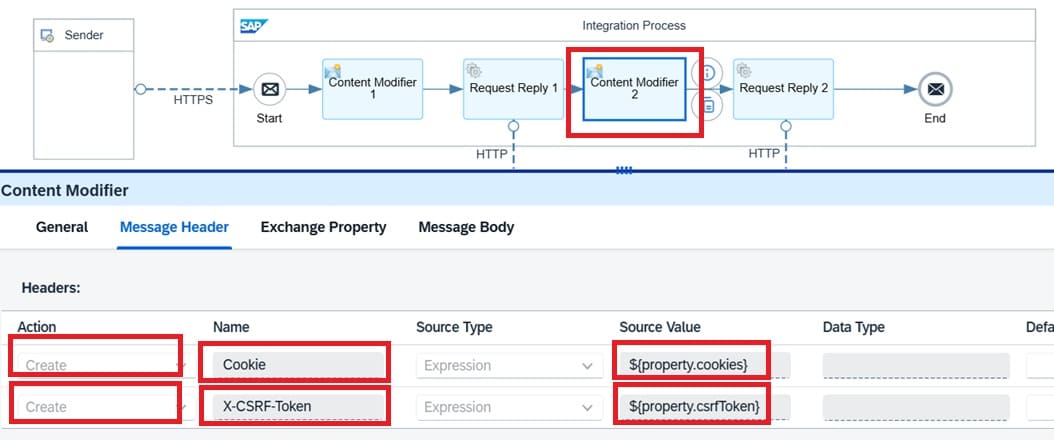
The purpose of Content Modifier 1 and Request Reply 1 is to retrieve the X-CSRF-Token from the backend, which will be used later for the actual API call in Request Reply 2.
Content Modifier 2
Request Reply 2
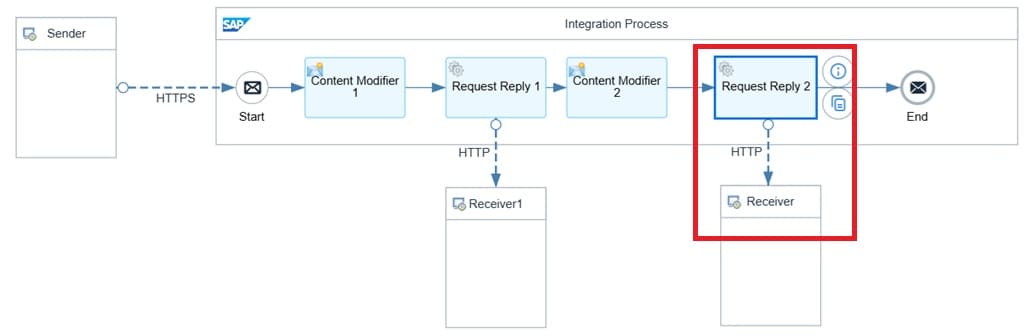
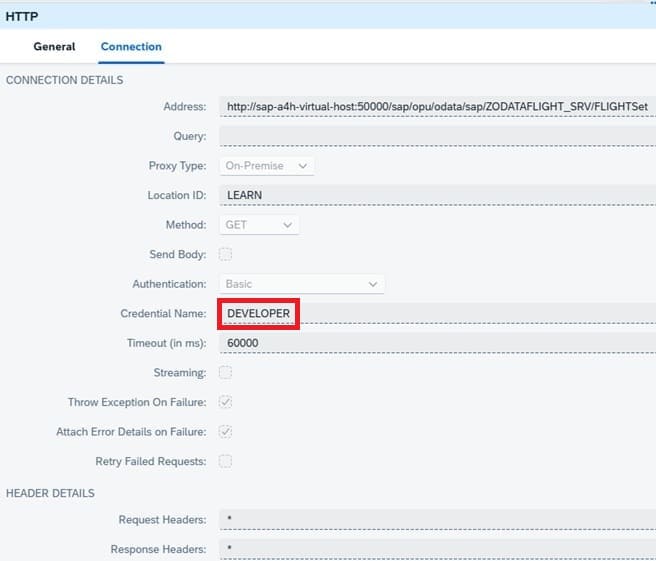
At this stage, the iFlow development is complete. The next step is to configure the SAP Cloud Connector installed on the back-end system.
Step 2: SAP Cloud Connector Setting
This document discuss only settings required to allow integrating On Prem OData on Integration Suite through cloud connector. Installing the cloud connector is explained in the following Link.
Adding Subaccount
This document also assumes that the respective subaccount has been added on SAP Cloud Connector and if it is not please refer to the following link for the purpose.
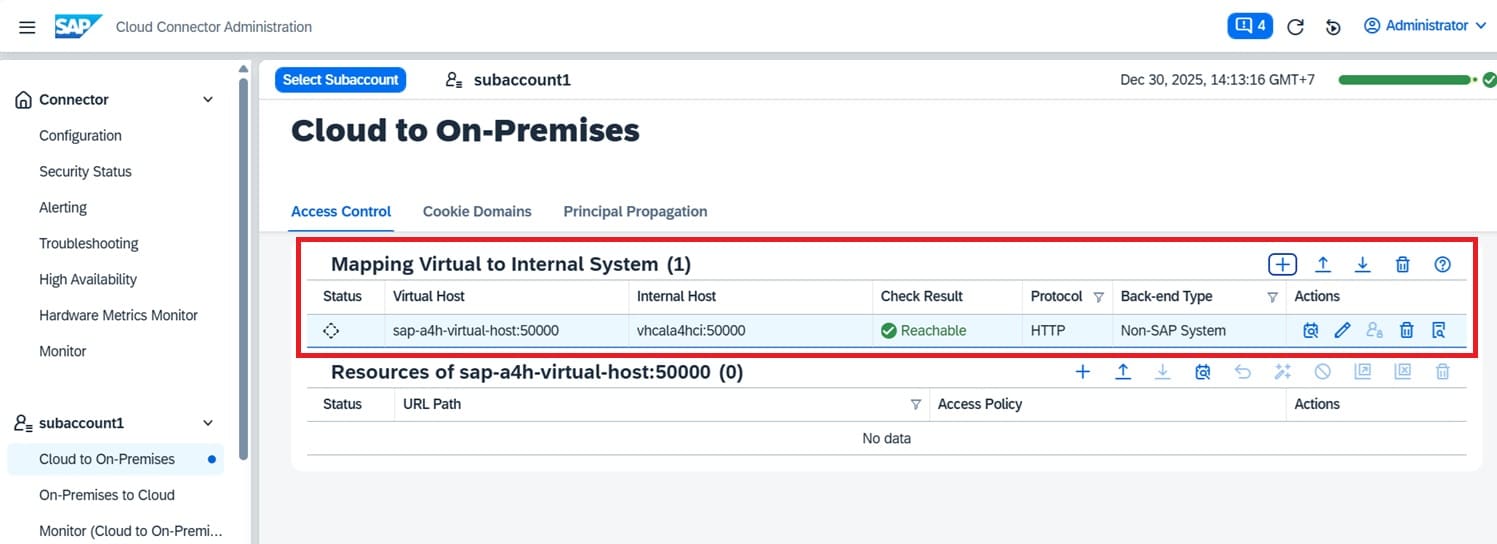
Adding Mapping Virtual to Internal System
Mapping a virtual system to an internal system using the HTTP protocol for a non-SAP system is required for this end-to-end integration architecture. This document assumes that the corresponding virtual-to-internal system mapping has already been configured in SAP Cloud Connector. If this configuration has not yet been completed, please refer to the following link for guidance.
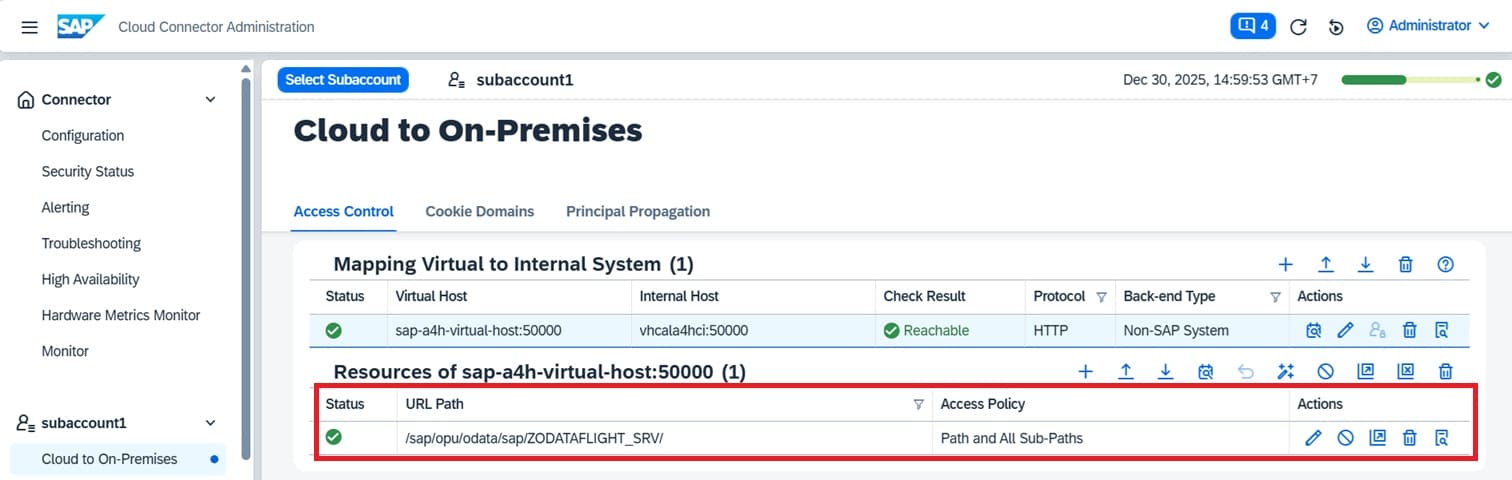
Adding Resource
Adding resources under the mapped system to expose it to the Integration Suite is a mandatory step. The procedure for adding HTTP resources for a non-SAP system is explained in detail in the following link.
Step 3: Testing iFlow
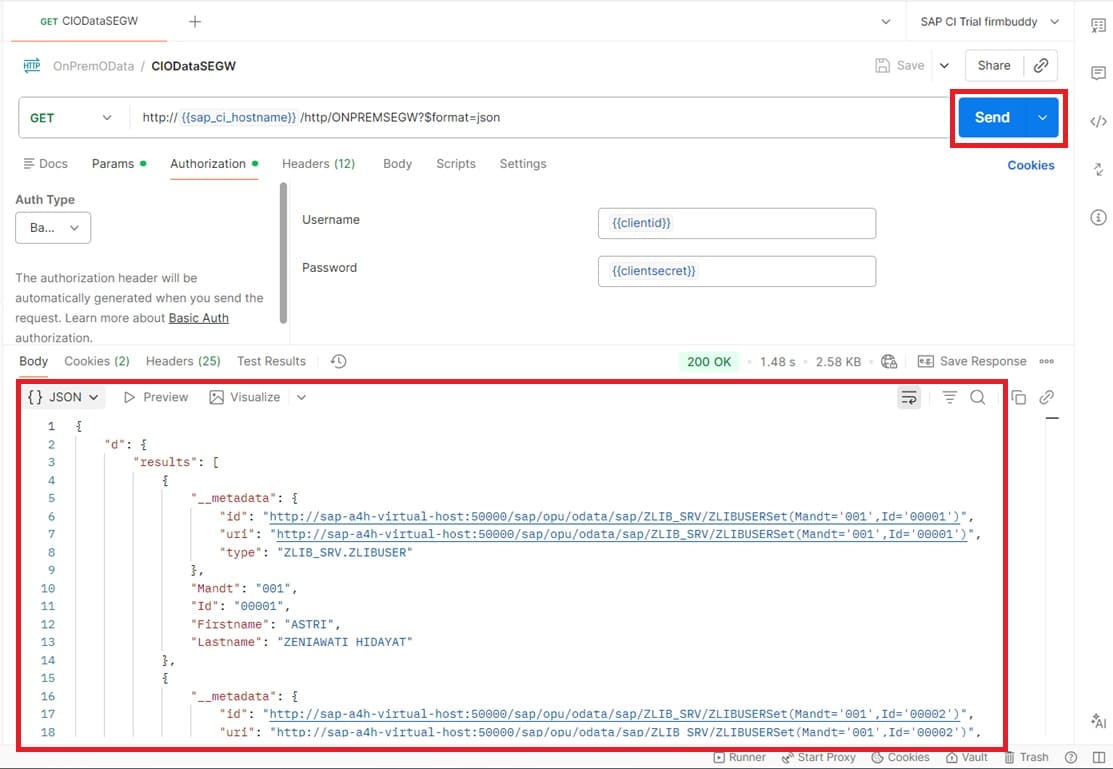
At this stage, all the developments and settings are completed. It's time to test the iFlow with Postman. Testing this iFlow is quite straight forward. On authorization tab, please maintain user name and password with clientid and clientsecret of SAP Process Integration Runtime key.
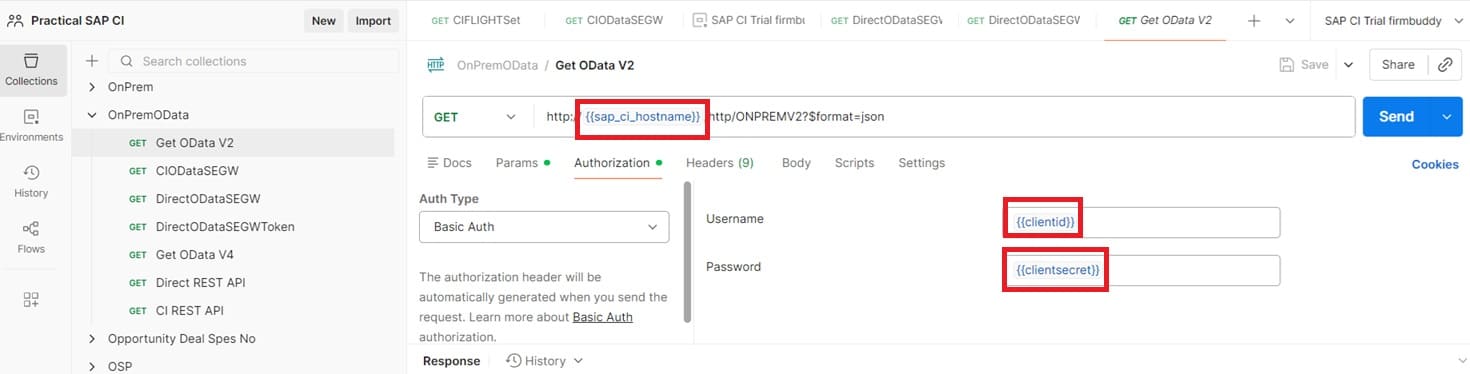
Click on "Send" button. The following is the result: