Integration Suite - Cloud Connector Settings
Published: January 2026
The SAP BTP Trial account is mandatory for connecting cloud connector to the outside world. This document assumes that an SAP BTP trial account is already available and fully provisioned. If this is not the case, the account can be created by following the instructions provided in this link.
Installing Cloud Connector
Cloud connector is pre-Installed for ABAP Cloud Trial. A separate Cloud Connector installation package is available at the following link.
Connecting SAP BTP to Cloud Connector
Adding Subaccount
This activity requires an SAP BTP Integration Suite account that is already provisioned and operational. If the account has not yet been set up, please follow the instructions provided in the referenced link.
Initial status of cloud connectors on BTP cockpit
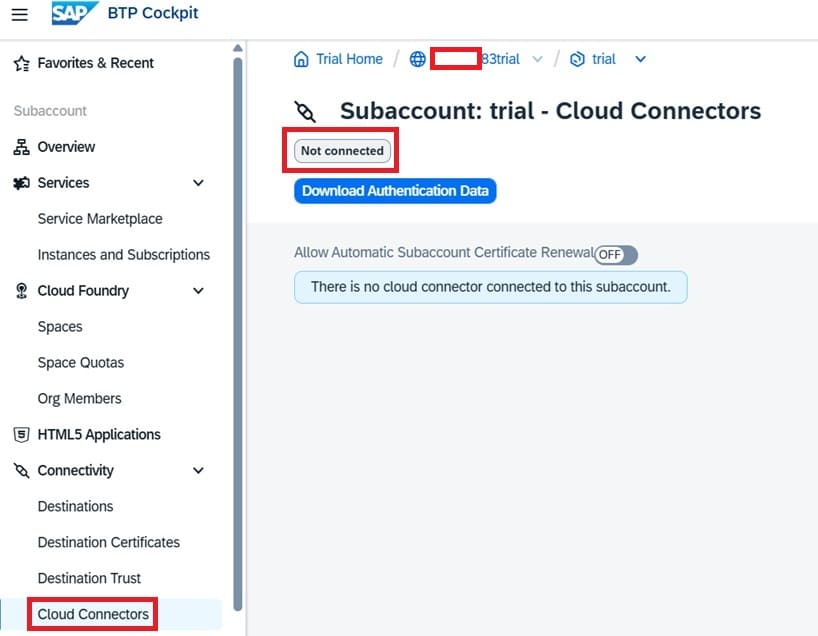
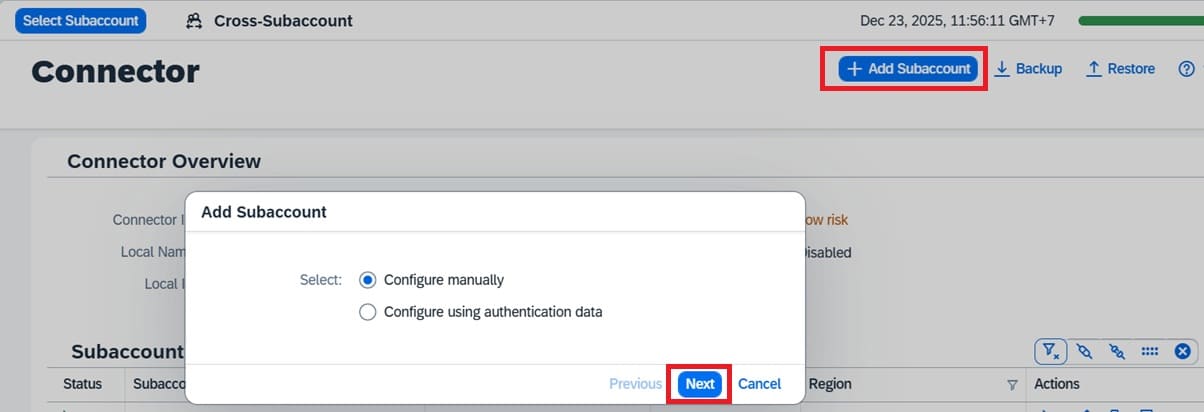
Step-by-step guide is provide as follow:
- Access Cloud Connector: Open your web browser and go to the Cloud Connector URL (e.g., https://localhost:8443 or https://
:8443) and log in. - Navigate: In the left-hand navigation panel, select Connector to view the subaccount dashboard.
- Add Subaccount: Click the Add Subaccount button (often a plus icon) to open the dialog box.
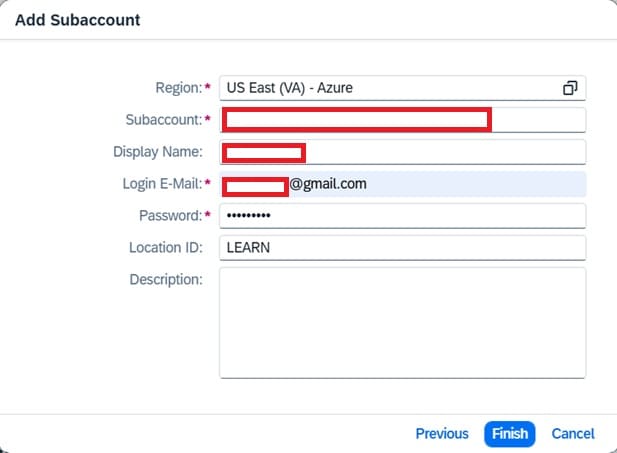
- Enter Details: Fill in the required information from your SAP Business Technology Platform (BTP) subaccount:
- Region: Select the region where your subaccount is hosted (e.g., Europe, US East).
- Subaccount: Enter the Subaccount ID.
- Display Name: A user-friendly name for your subaccount.
- Subaccount User: Your login email or S-User for that BTP subaccount.
- Password: The password for the user specified.
- Save: Click Save. The Cloud Connector will attempt to connect to the BTP subaccount.
- Verify: After saving, the subaccount should appear in the list with a connected status. You can then proceed to configure Cloud to On-Premise mappings for your backend systems (like ABAP or other databases).

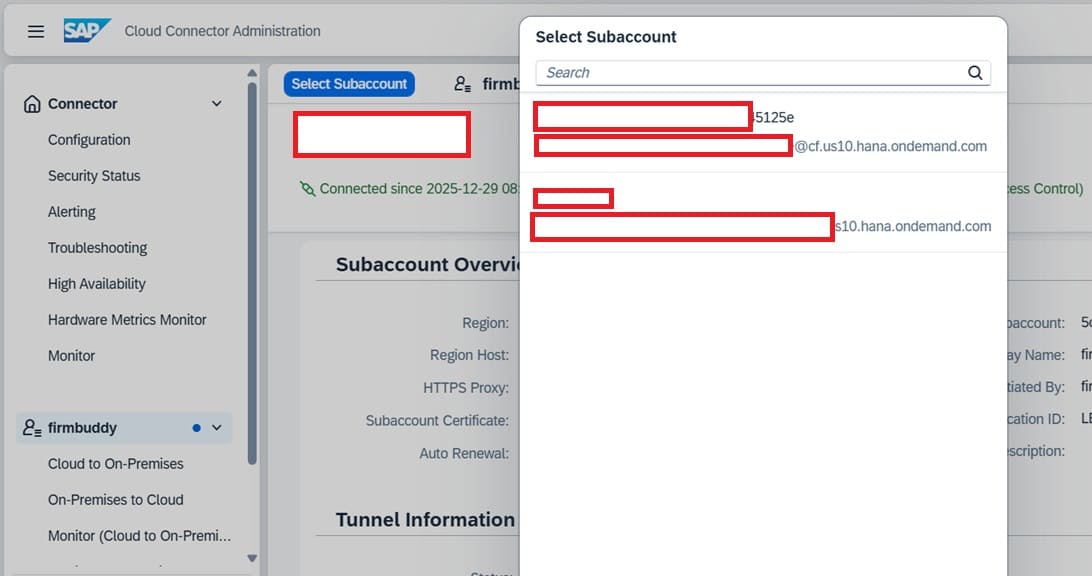
On successful additon of the subaccount, the new subaccount must be seen on SAP Cloud Connector:
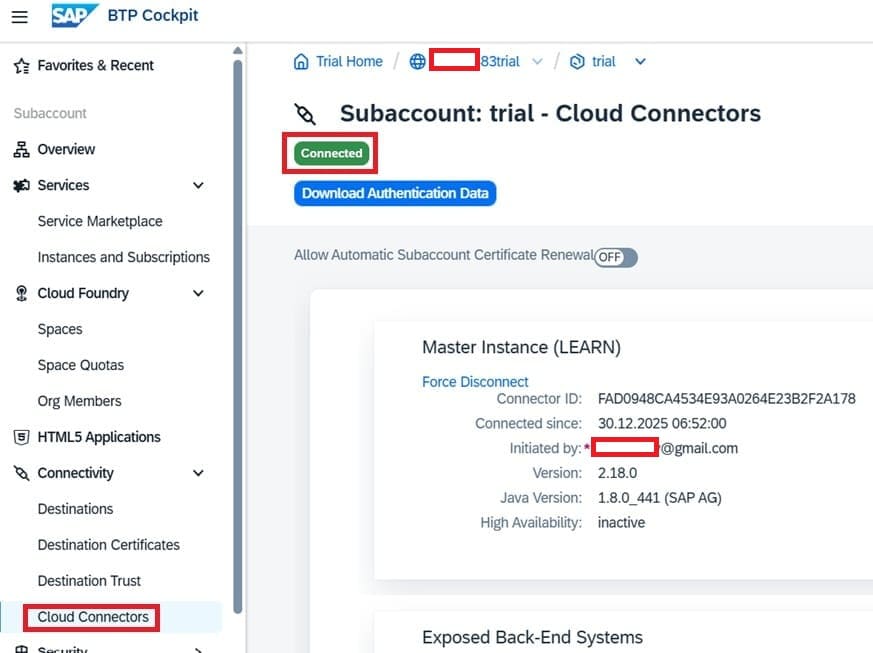
And "Cloud connectors" on BTP cockpit after adding subaccount on cloud connector should be like this:
Adding Mapping Virtual to Internal System
With this setting, you can define the communication address and its alias (virtual system), as well as the protocol and the type of backend system to which the SAP Cloud Connector will connect.
HTTP Protocol, Non-SAP system
Open SAP Cloud Connector and select the subaccount.
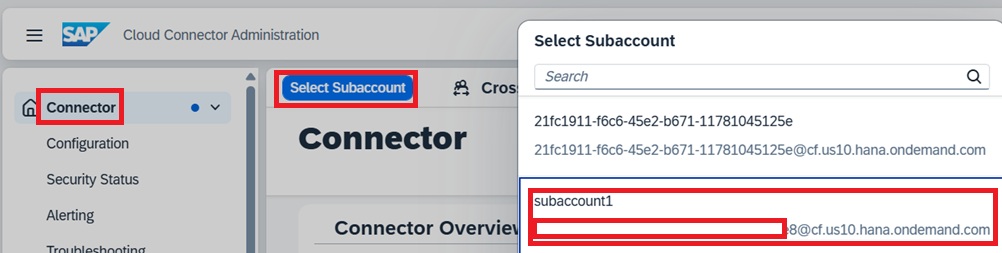
Ensure the subaccount is connected ...
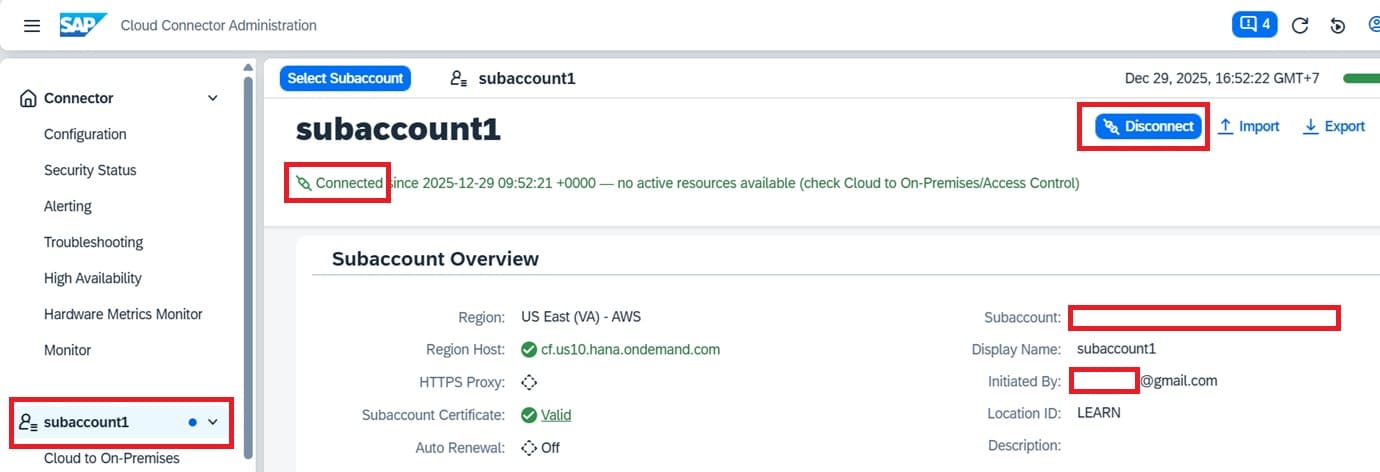
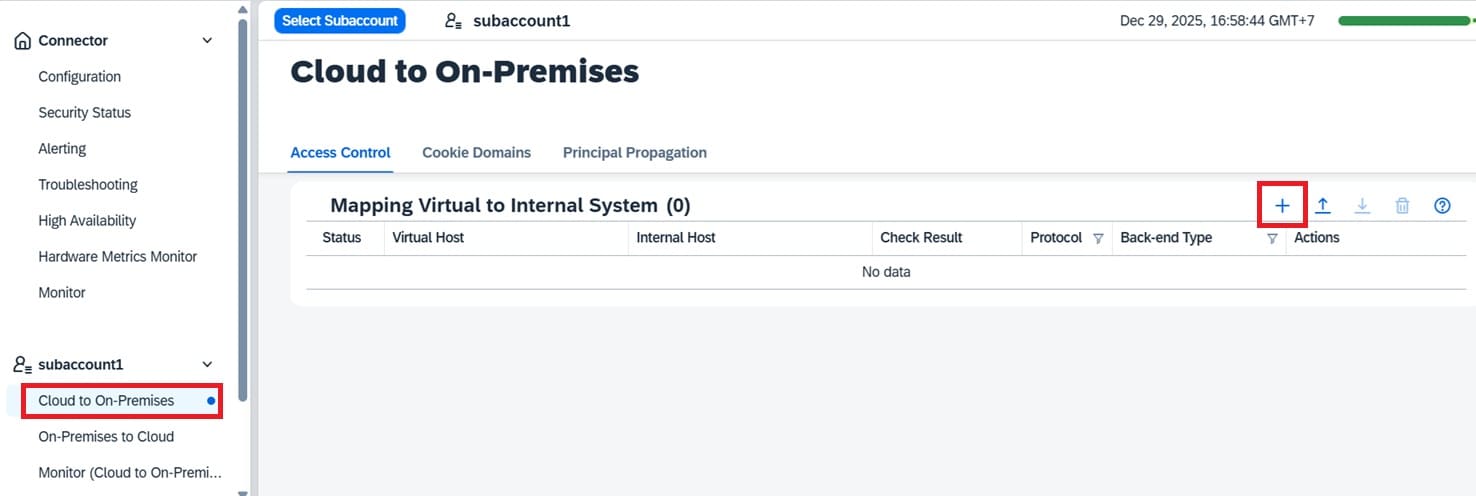
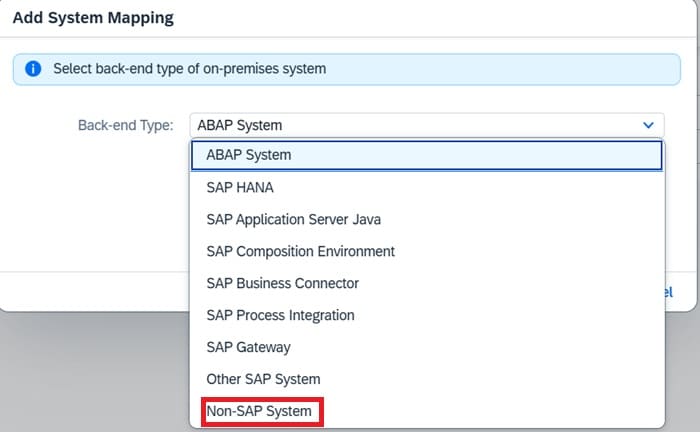
Click on "Cloud to On-Premises" and click plus sign, the popup screen come out. Select "Non-SAP System" from the dropdown. Click Next
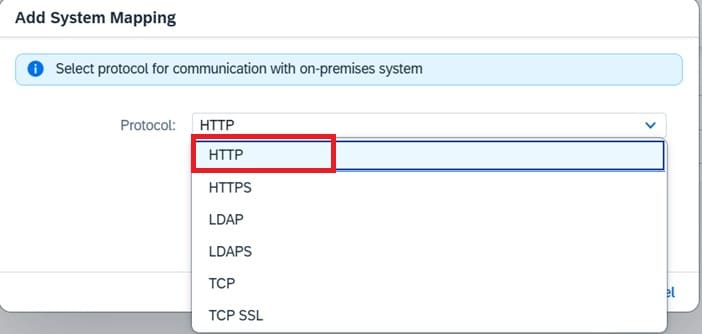
Select "HTTP" from dropdown and click "Next".
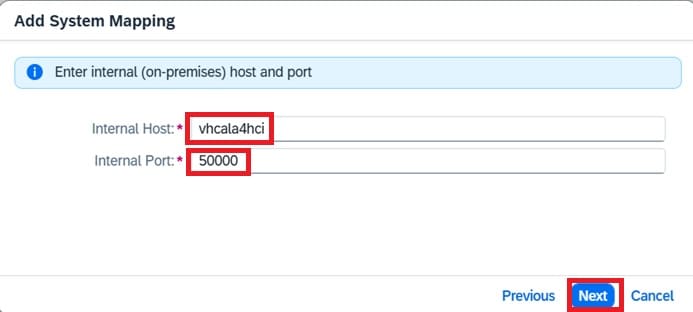
Key in internal host and internal port.
Also key in virtual host and virtual port. The virtual host and virtual port are host and port known at Integration Suite side.
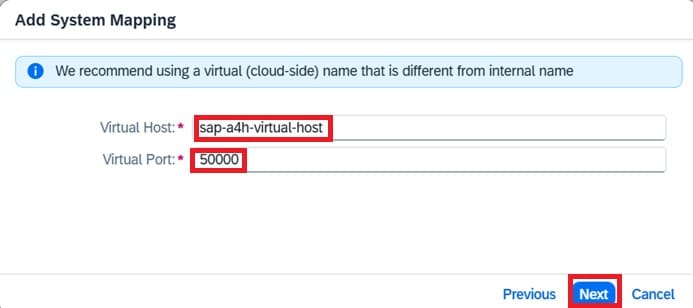
Leave the checkbox ticked and click "Next".
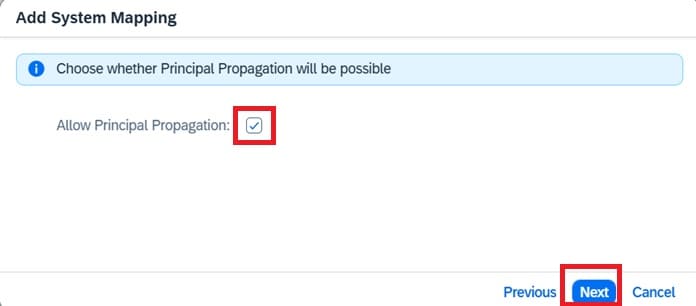
Keep "Kerberos" as principal type.
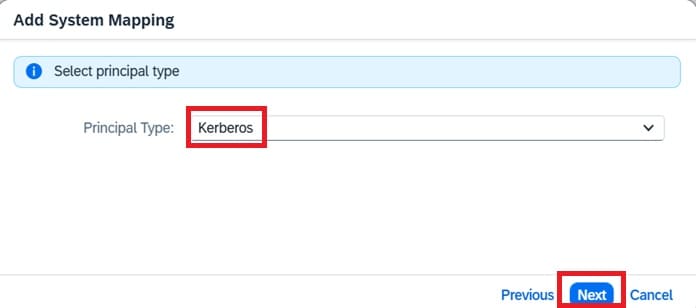
User virtual host.
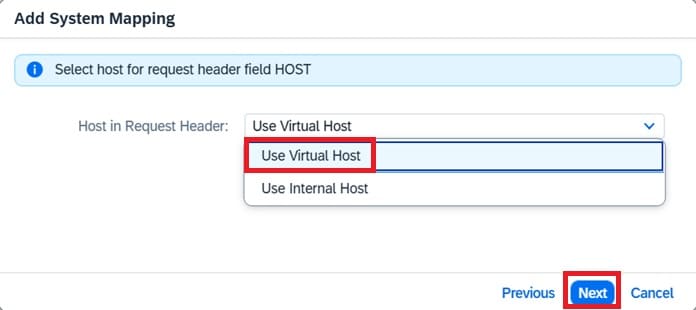
Click "Next".
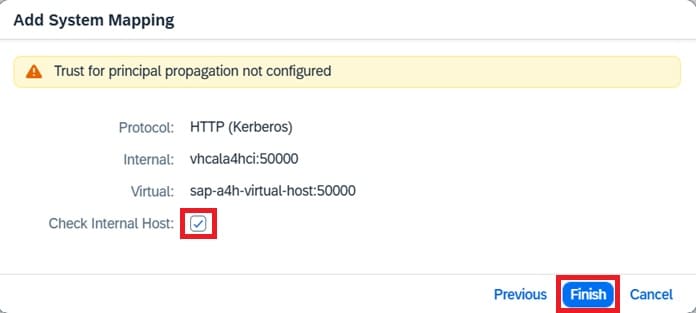
Click "Finish".
RFC Protocol, ABAP system
Open SAP Cloud Connector and select the subaccount.
Ensure the subaccount is connected ...
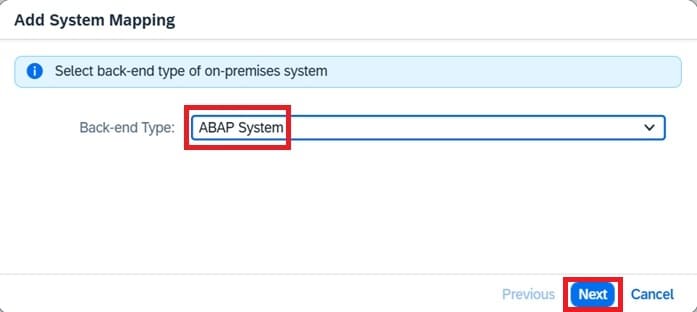
Click on "Cloud to On-Premises" and click plus sign, the popup screen come out. Select "ABAP System" from the dropdown. Click Next
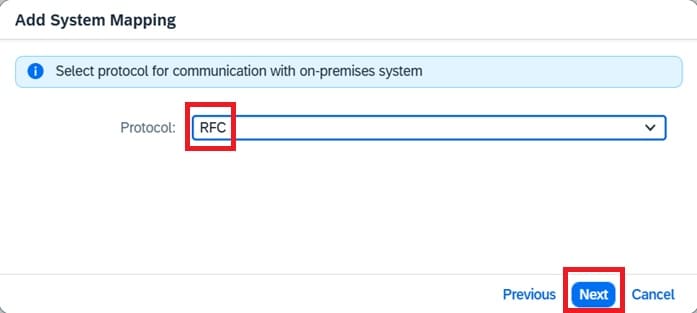
Select "RFC" from dropdown and click "Next" button.
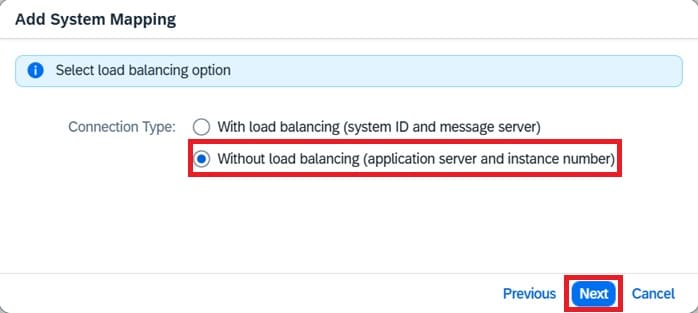
Select "Withoud load balancing ..." radio button and click "Next" button.
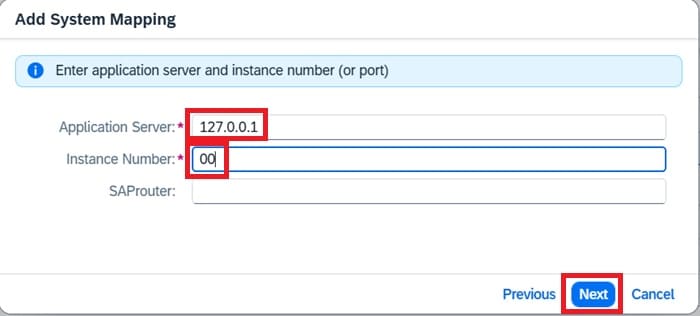
Since the cloud connector installed running on local machine, maintain "127.0.0.1" on Application Server and ABAP Cloud trial backend instance number "00" on Instance Number. Click Next.
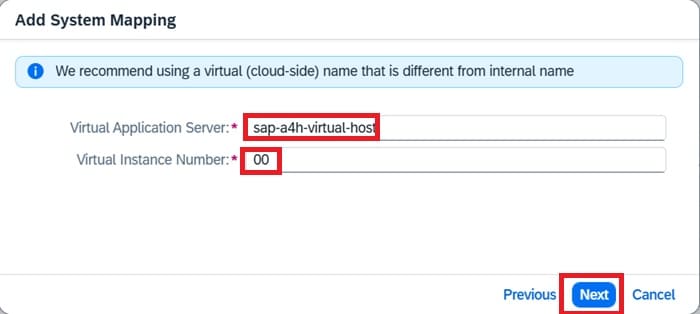
Maintain the virtual application server and instance number. Click Next.
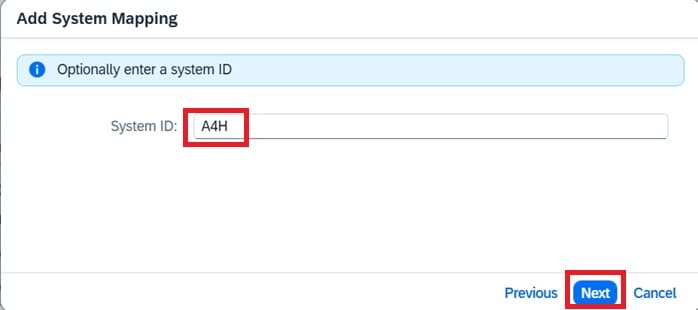
Select system ID. Click Next.
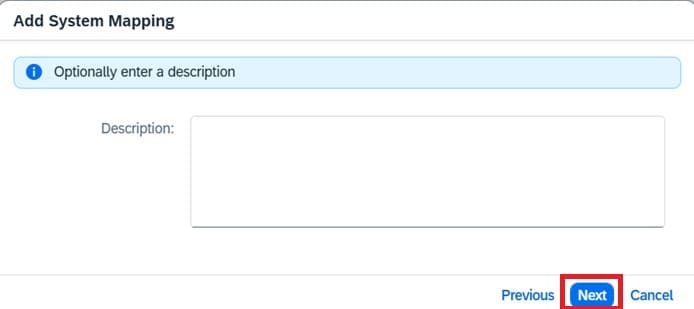
Description is optional. Click Next.
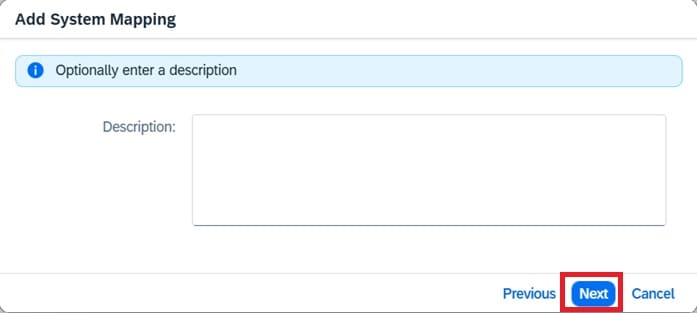
then click Finish.
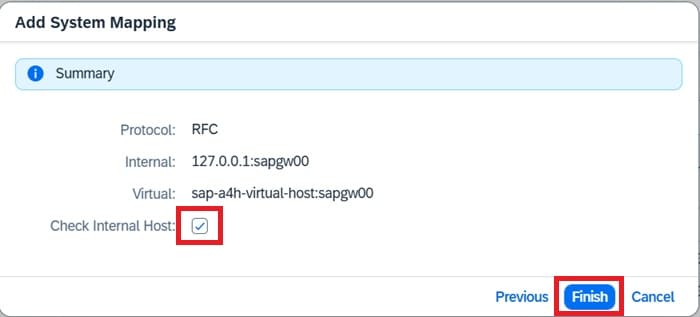
Adding Resources to Mapped System
Adding resources to HTTP Protocol, Non-SAP system
Open SAP Cloud Connector and select the subaccount.
Ensure the subaccount is connected ...
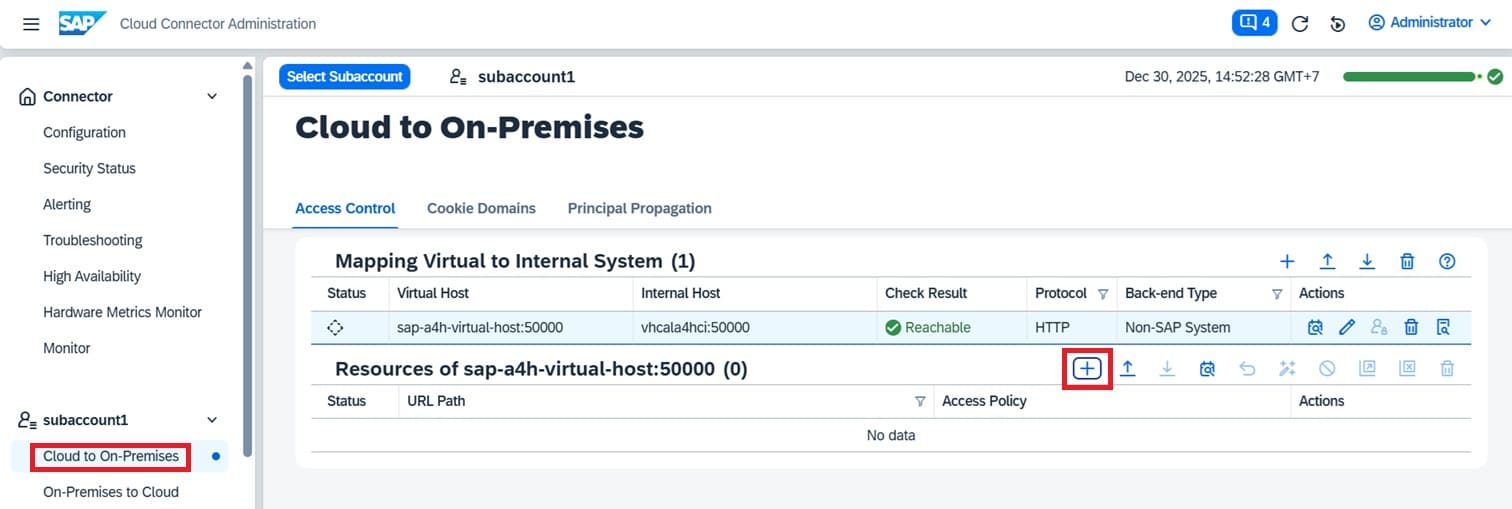
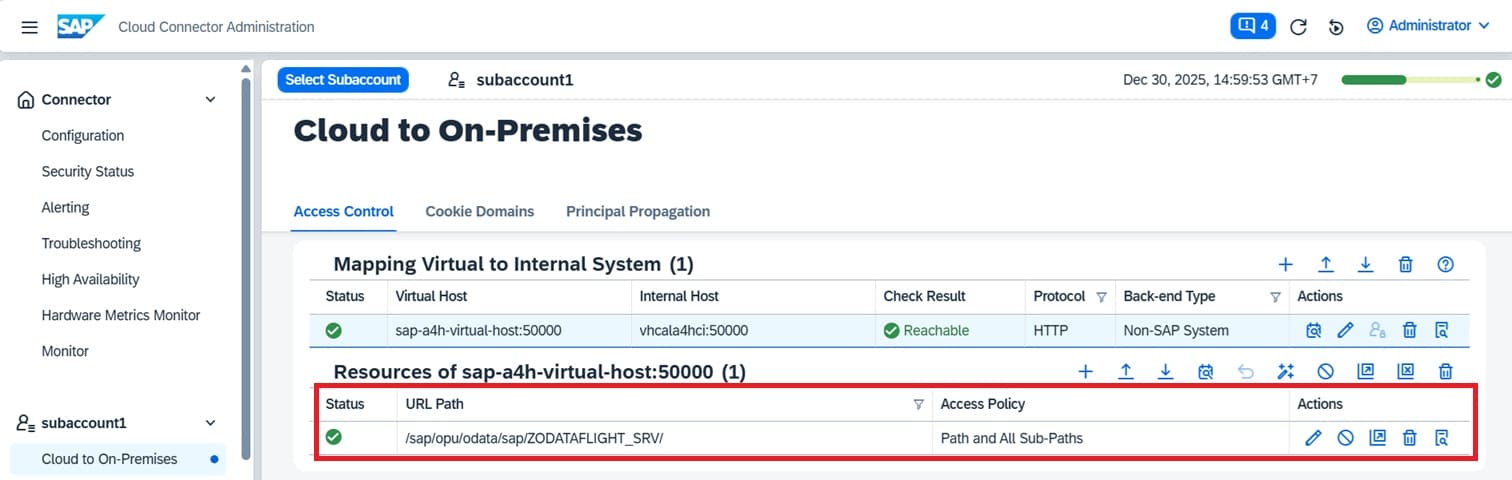
Click on "Cloud to On-Premises". Select the HTTP Protocol, Non-SAP system by clicking on it. Click plus sign on the respective system screen block, the popup screen come out.
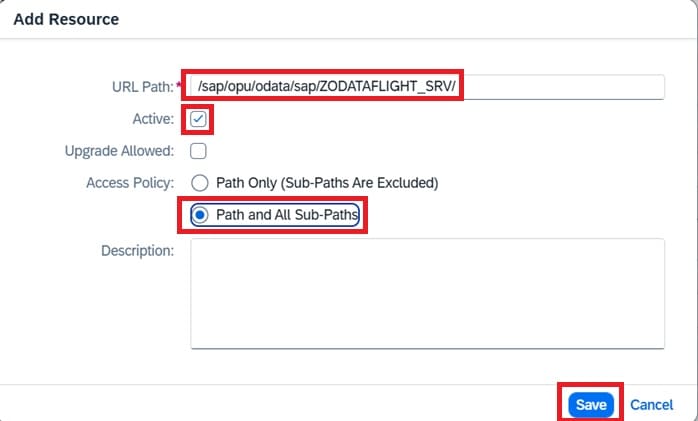
Key in URL path. Tick on "Active" checkbox. Select radiobutton "Path and All Sub-Paths". Click "Save" button.
A new resource has been added to the mapped system.
Adding resources to RFC Protocol, ABAP system
Open SAP Cloud Connector and select the subaccount.
Ensure the subaccount is connected ...
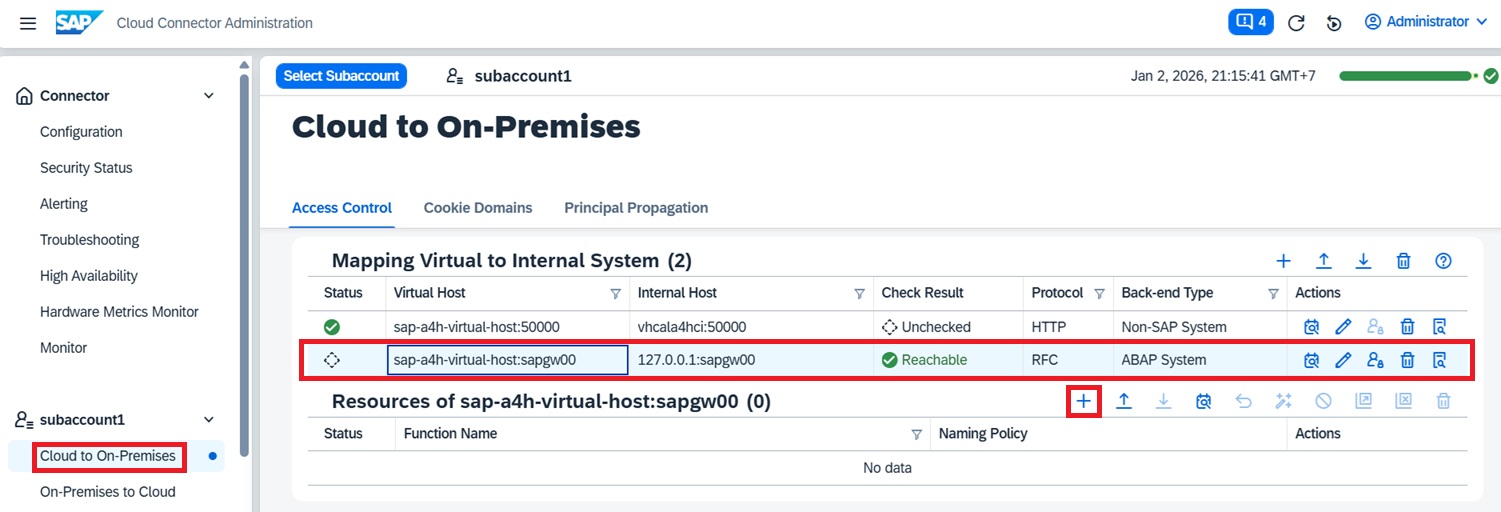
Click on "Cloud to On-Premises". Select the RFC Protocol, ABAP system by clicking on it. Click plus sign on the respective system screen block, the popup screen come out.
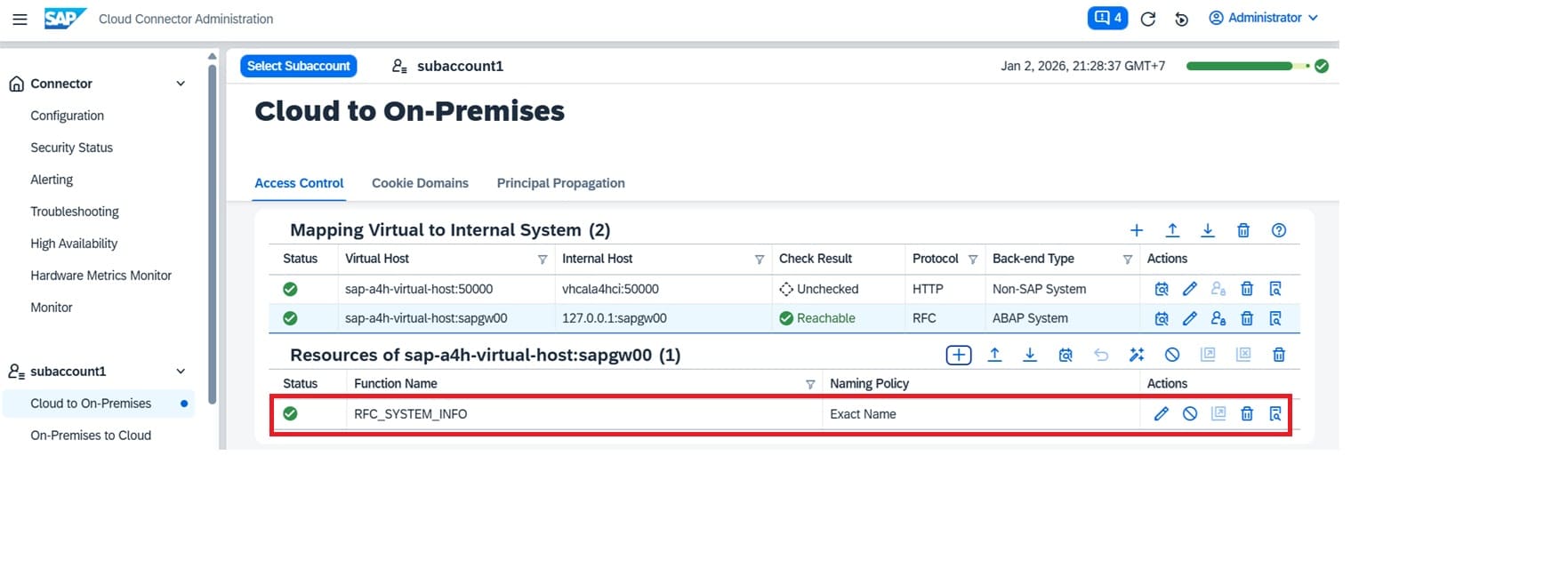
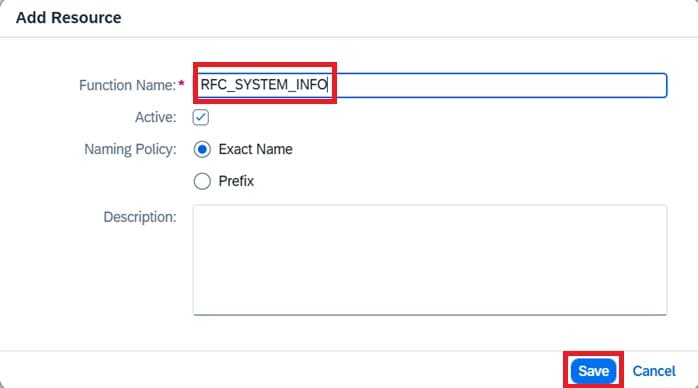
Add the Function Name and click "Save".
A new RFC resource added to the the mapped system.