Integration Suite - Accessing On Prem RFC through iFlow
Published: January 2026
Have you ever considered whether an RFC function module can be accessed via SAP Integration Suite? This document provides a comprehensive, step-by-step explanation of the configuration and technical procedures required to enable such access. The following sections outline the detailed approach and key integration considerations involved in achieving this connectivity.
This document assumes that SAP Integration Suite trial tenant is already available and fully provisioned. If this is not the case, please follow the instructions provided in this link.
Step 1: Cloud Connector Settings
Adding RFC Connection in Cloud Connector
Mapping a virtual system to an internal system using RFC protocol for ABAP system is required for this end-to-end integration architecture. This document assumes that the corresponding virtual-to-internal system mapping has already been configured in SAP Cloud Connector. If this configuration has not yet been completed, please refer to the following Link for guidance.
| Key | Value |
|---|---|
| Back-end Type | ABAP System |
| Protocol | RFC |
| Connection Type | Without load balancing |
| Application Server | 127.0.0.1 |
| Instance Number | 00 |
| SAProuter | |
| Virtual App Server | sap-a4h-virtual-host |
| Virtual Instance No | 00 |
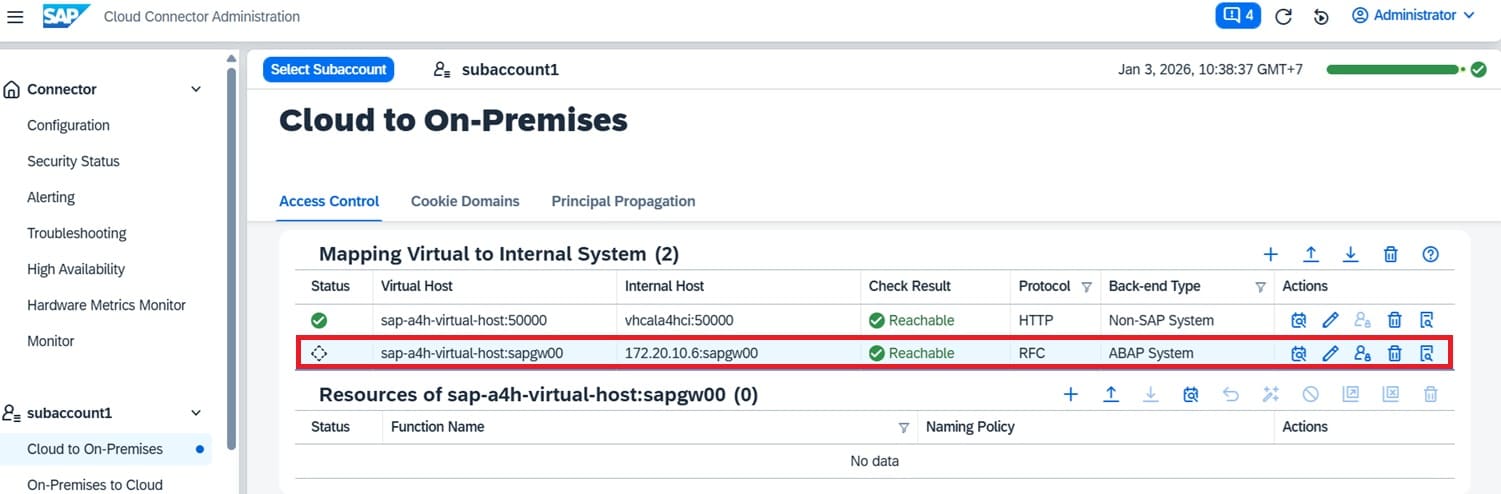
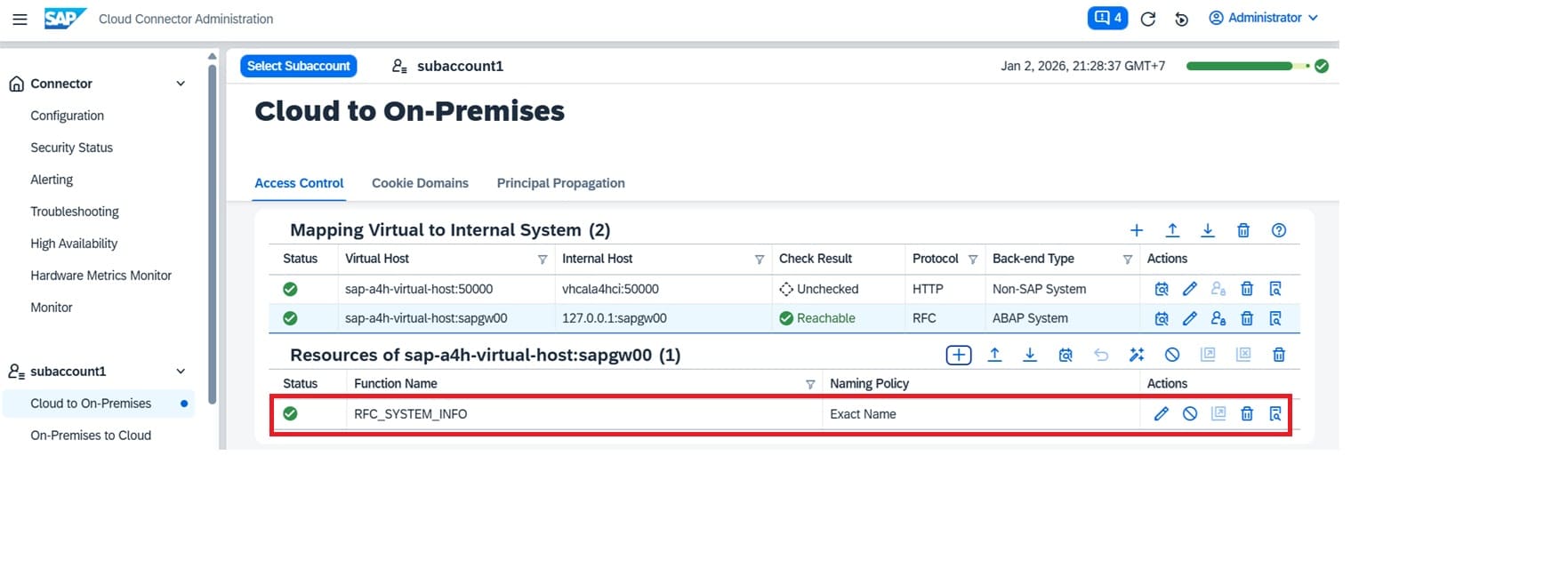
Adding RFC Resource Under the Cloud Connector RFC Connection
This document assumes that the RFC function module name has already been added as a resource to the mapped system. If this resource has not yet been configured, please follow the instructions provided in the following link.
In addition, the mapped system must have the required resources configured for the RFC protocol on the ABAP system. If this configuration has not been completed, please refer to this link for detailed guidance.
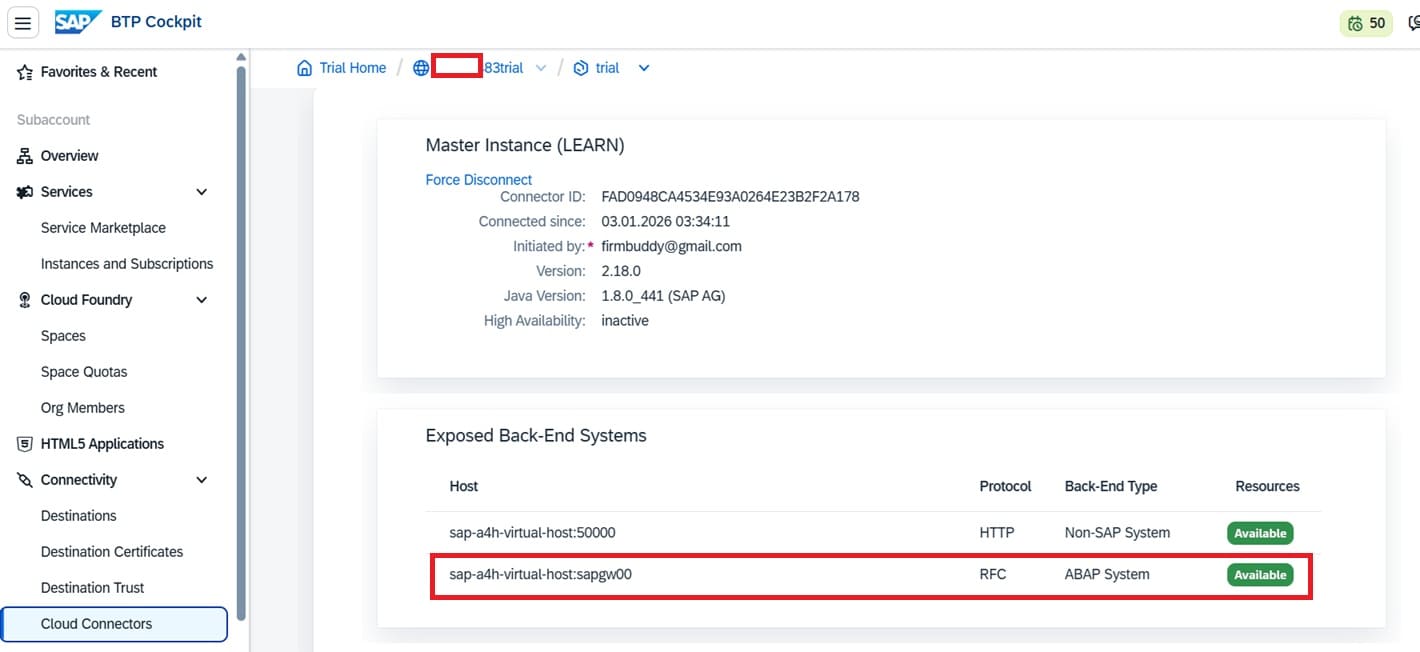
Upon completion of cloud connector settings, on BTP side exposed back-end should represent the newly added RFC resource.
Step 2: Adding RFC Destination on SAP BTP
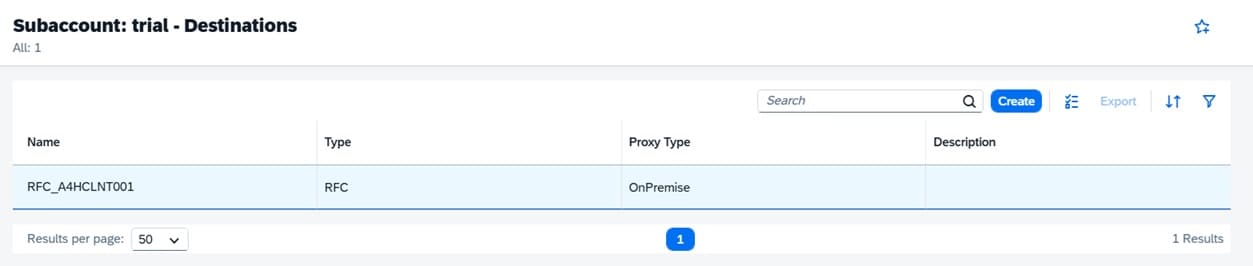
After completing the Cloud Connector configuration to expose the RFC–ABAP system connection on SAP BTP, the next step is to create the corresponding destination in SAP BTP. This document assumes that the RFC destination has already been configured in SAP BTP. If it has not yet been set up, please refer to the following link for detailed guidance.
Step 3: Develop iFlow on SAP Integration Suite
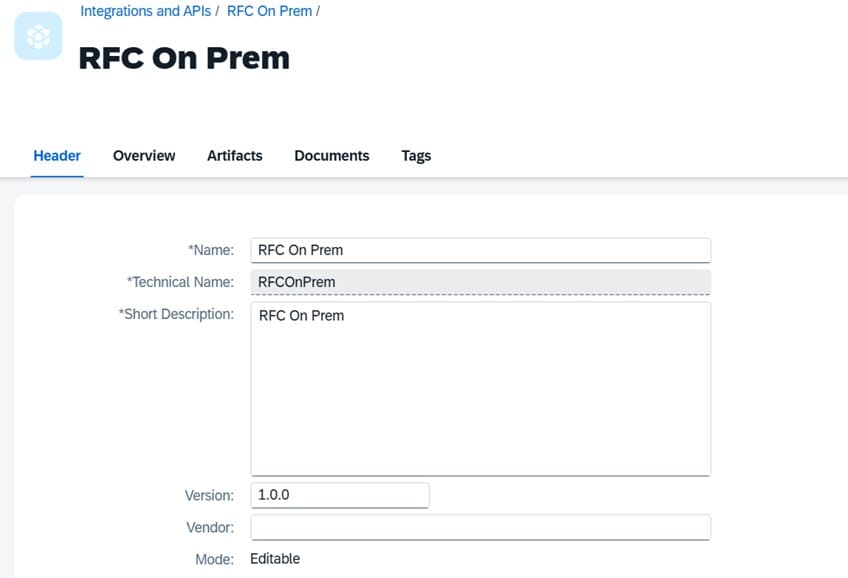
Create a Package
Create a new package for this iFlow. Please follow the similar steps on the following link for this purpose.
Create iFlow artifact
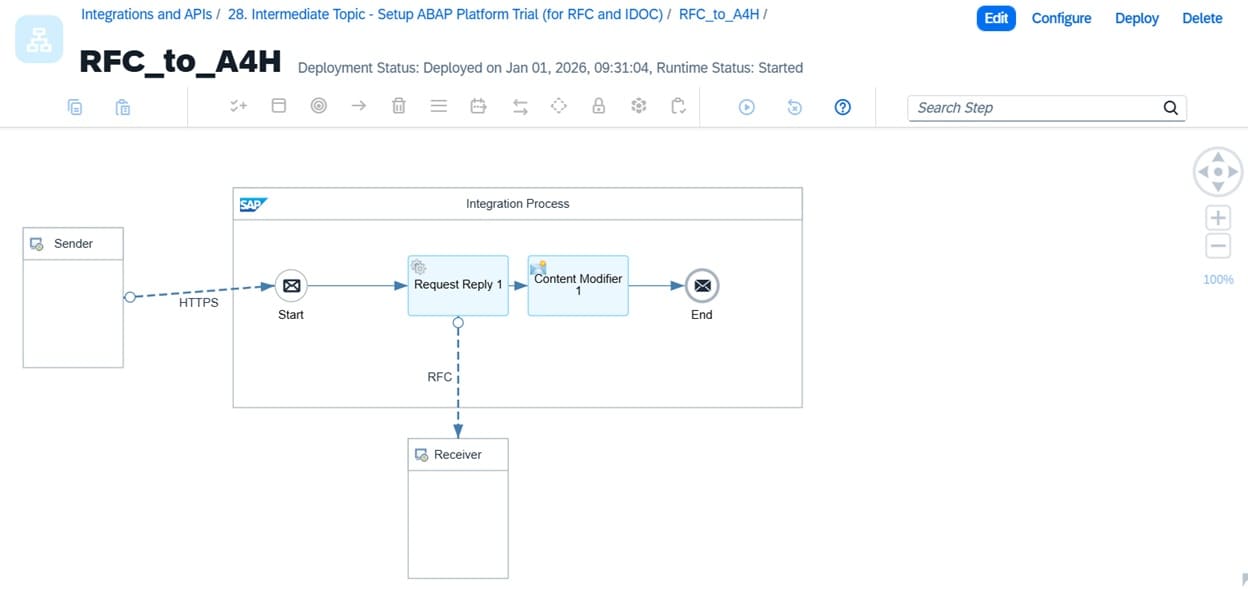
Create a new package for this iFlow. Please follow the similar steps on the following link for this purpose.
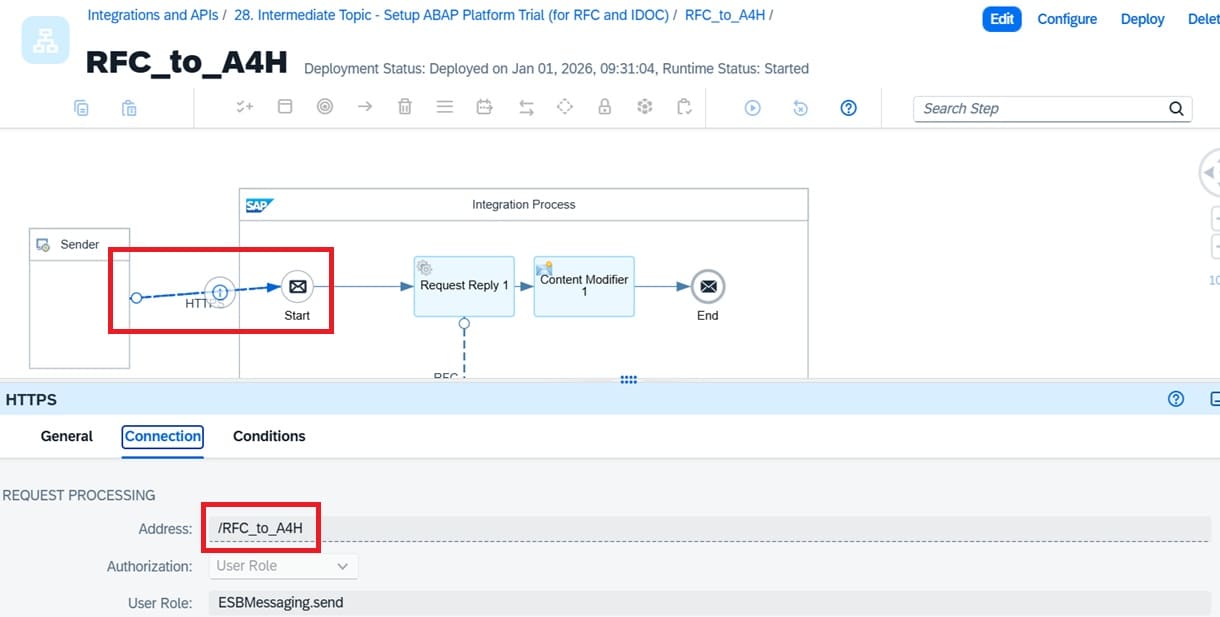
HTTPS Adapter
Request Reply 1
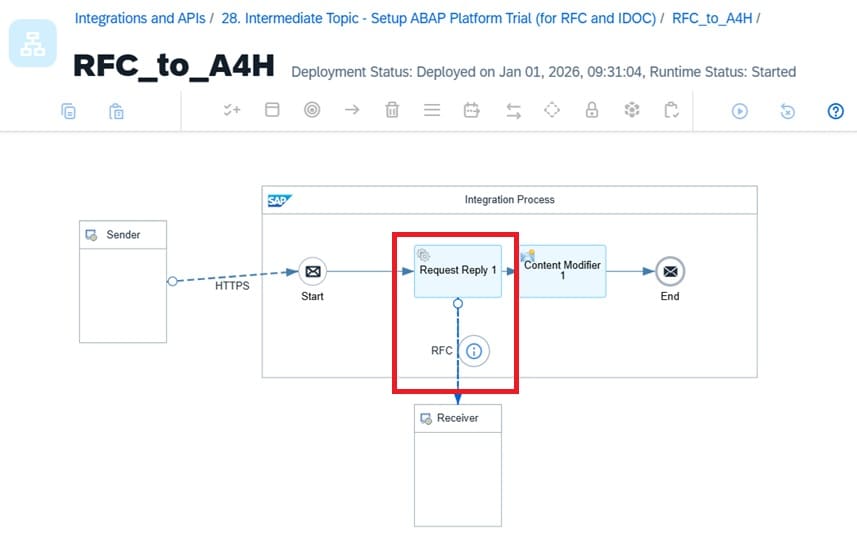
Key in RFC Destination maintain previously as a parameter on this Request Reply.
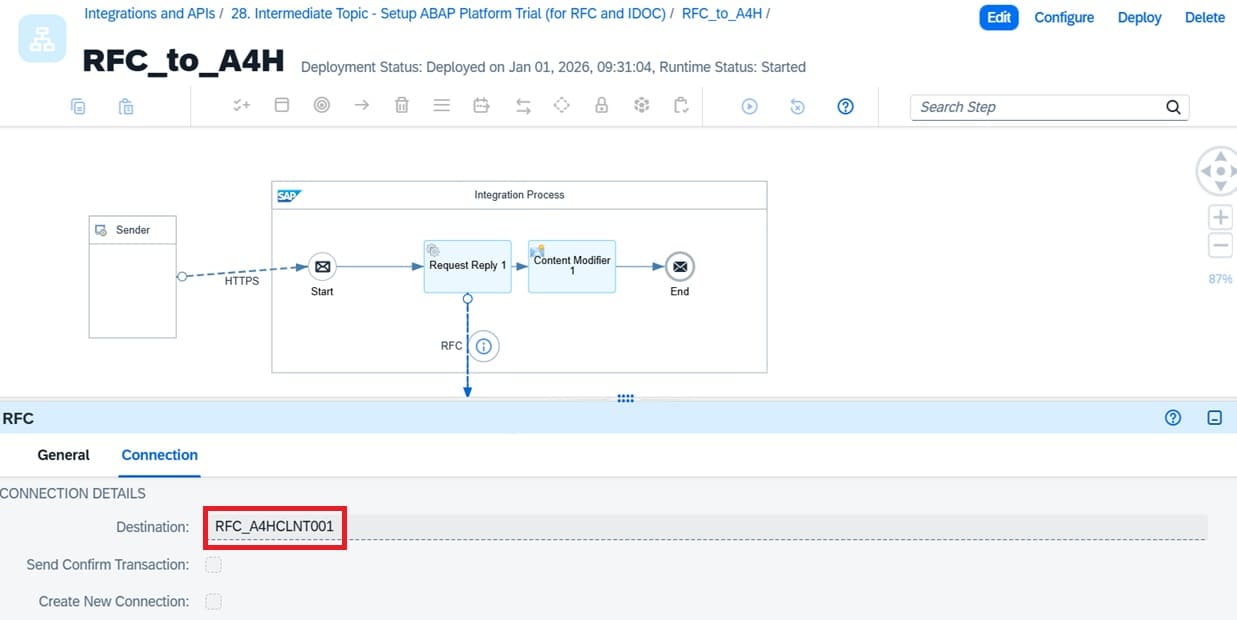
Click save and a new iFlow created and ready for testing.
Testing the iFlow
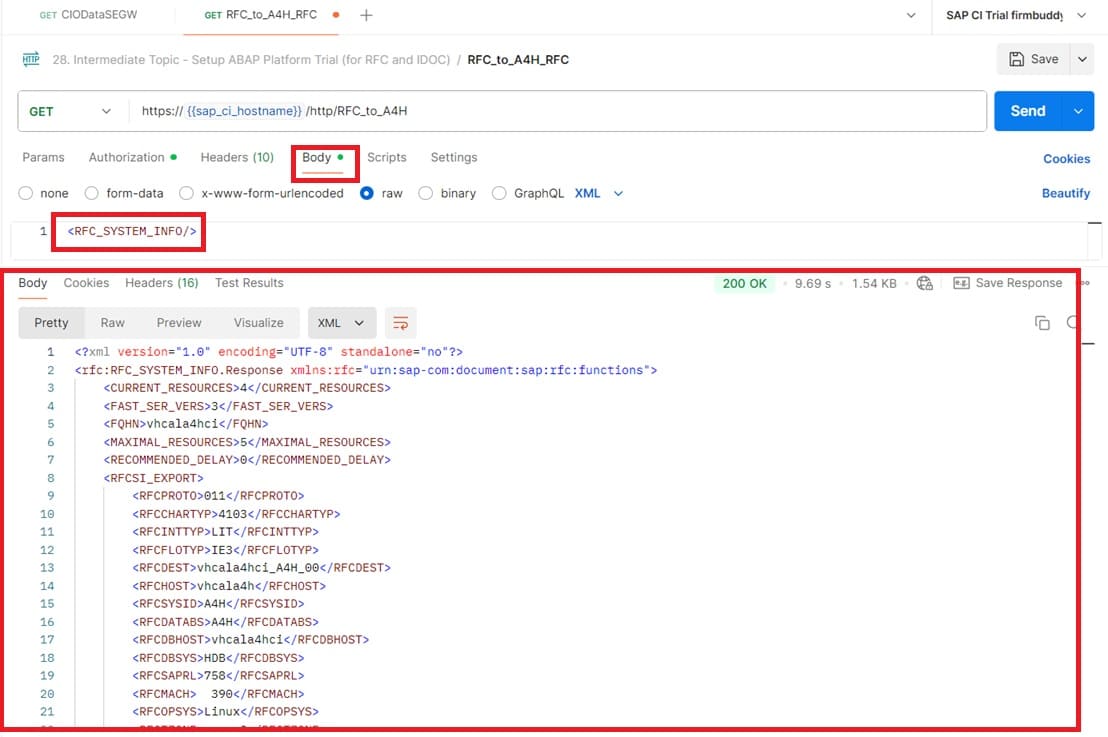
One of the key points to note for an RFC iFlow is that the RFC function module to be invoked must be specified in the request body, as shown below:
		<ns0:RFC_SYSTEM_INFO xmlns:ns0="urn:sap-com:document:sap:rfc:functions">
		</ns0:RFC_SYSTEM_INFO>
or
		<RFC_SYSTEM_INFO>
		</RFC_SYSTEM_INFO>
or
<RFC_SYSTEM_INFO/>
Below is the outcome of testing the iFlow via Postman: